Tuto signature for MAIL App (Apple)
How to add Brachfeld signature to MAIL App (Apple)
Preview of the signature :
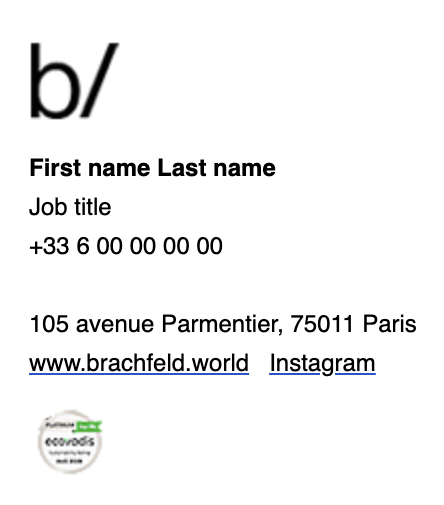
0️⃣ Download these 2 images on your computer :
Brachfeld logo
EcoVadis icon
1️⃣ Open Mail preferences
1 - Open the Mail app on your Mac.
2 - In the top menu, click Mail → Settings (or Preferences, depending on your macOS version).
3 - Go to the Signatures tab.
2️⃣ Create a new Signature
1 - In the left-hand column, choose the email account where you want to add the signature.
2 - Click the "+" button at the bottom to create a new signature.
3 - Give it a name (e.g., "Brachfeld").
4 - A default signature box will appear on the right, you can now customize it.
3️⃣ Compose your Signature
1 - Press Enter key 2 times, to add line breaks
2 - Copy / Past this text :
First name Last name
Job title
+33 6 00 00 00 00
105 avenue Parmentier, 75011 Paris
www.brachfeld.world
Instagram
3 - Then, modify carefully with your personal info
🔹 Add Brachfeld logo + EcoVadis icon images
⚠️ Unfortunately, Apple Mail's built-in editor doesn't allow inserting images directly into signatures from the UI. However, you can add them using a workaround :
1 - Find the image file of Brachfeld logo (cf. step 0️⃣) in your Finder.
2 - Drag and drop the image into the signature editing area, at the right place (cf. preview at the top of this page).
3 - Repeat for the EcoVadis icon image
🔹 Add bold on text
Highlight text and press Command + B, or right click > font > bold, to make it bold.
🔹 Add Hyperlinks and underline text
1 - Highlight the text then right-click > hover Hyperlink > click to Add Link.
2 - Paste Brachfeld website URL : https://www.brachfeld.world and click OK
4 - Repeat for the Instagram hyperlink, with Brachfeld instagram account url : https://www.instagram.com/brachfeld_/ and click OK
5 - Highlight the first link text then right-click > hover Font > click to Underline.
6 - Repeat for the other link text
🔹 Add black color to links
1 - Hightlight underline link and press Command + U, or right click > font > display colors, to open colors window.
2 - Click on the middle icon at the top (color palette) then pick "black"
3 - Repeat for the other underline link
4️⃣ Assign Signature to email account
In the Signatures settings :
At the bottom of the middle column, choose your new signature as the default for that account.
5️⃣ Save and test
1 - Close the Settings window.
2 - Click New Message, your signature should appear automatically.
3 - Send an email test, then check that :
The images displays correctly
Bold and regular text are properly styled
Hyperlinks are clickable and lead to the correct destinations
Everything look like the preview