Tuto signature for OUTLOOK
How to add Brachfeld signature to OUTLOOK
Preview of the signature :
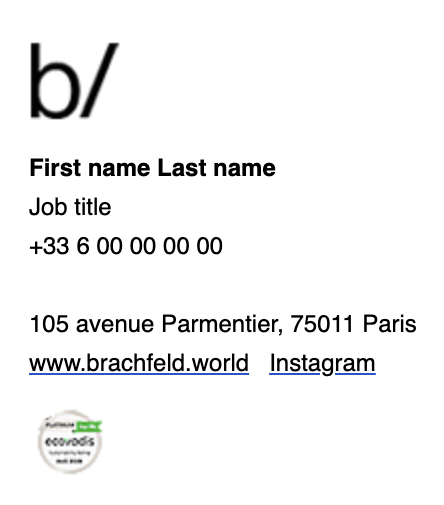
0️⃣ Download these 2 images on your computer :
Brachfeld logo
EcoVadis icon
1️⃣ Open Outlook Signature settings
1 - From your computer, launch Outlook (Desktop app).
2 - Click on File in the top-left corner.
3 - Select Options at the bottom of the sidebar.
4 - In the pop-up window, go to the Mail tab.
5 - Click on the Signatures... button on the right side.
2️⃣ Create a New signature
1 - In the Email Signatures window, click New.
2 - Type a name for your signature (e.g., "Brachfeld") and click OK.
3️⃣ Compose Your signature
1 - Press Enter key 2 times, to add line breaks
2 - Copy / Past this text :
First name Last name
Job title
+33 6 00 00 00 00
105 avenue Parmentier, 75011 Paris
www.brachfeld.world
Instagram
3 - Then, modify carefully with your personal info
🔹 Add Brachfeld logo + EcoVadis icon images
1 - Place your cursor where you want the image to appear (cf. preview at the top of this page).
2 - Click the Image icon (it looks like a photo).
3 - Select the image file (cf. step 0️⃣) from your computer.
4 - Click Insert.
🔹 Add bold on text 【 if needed 】
Highlight text, click "B" to make it bold.
🔹 Add Hyperlinks 【 if needed 】
1 - Highlight the text.
2 - Click the Link icon (globe with chain).
3 - Paste your URL ( https://www.brachfeld.world ) and click OK.
4 - Repeat for the second link ( https://www.instagram.com/brachfeld_/ ).
4️⃣ Assign Signature to emails
At the bottom of the signature settings window :
New messages → Choose your new signature.
Replies/forwards → Choose your new signature.
5️⃣ Save and test
1 - Click Save to save your signature.
2 - Compose a new email, your signature should appear automatically.
3 - Send an email test, then check that :
The images displays correctly
Bold and regular text are properly styled
Hyperlinks are clickable and lead to the correct destinations
Everything look like the preview